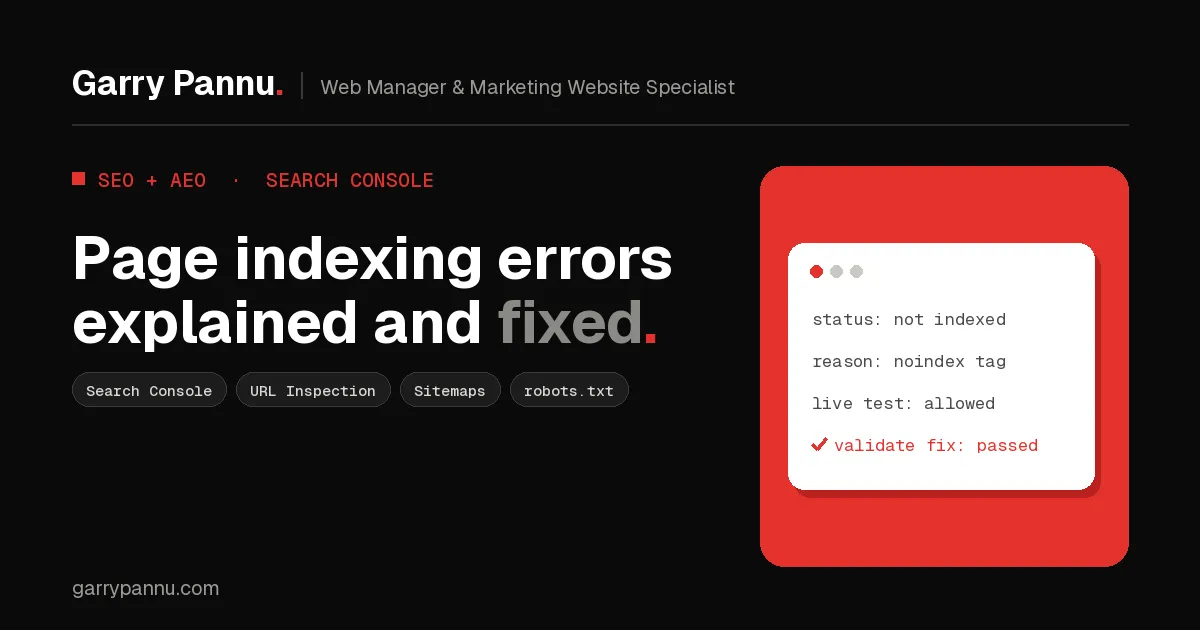
Quick answer: open Indexing > Pages in Search Console, ignore the total and check whether your important pages are indexed. For each reason, inspect an example URL, decide if the exclusion is intentional, fix only the real problems (noindex, robots.txt, broken links, weak content), then click Validate fix and wait.
When a client forwards me a panicked screenshot of the Search Console Page indexing report, it usually shows hundreds of URLs under "Not indexed". Most of the time, the site is fine. Redirects, tracking parameters and old 404s are supposed to be excluded. But hidden in that list there is often one real problem, like a noindex tag left over from staging or a robots.txt rule blocking the whole blog.
Here's how I read the report on client marketing sites, and how to fix the statuses that matter.
Key takeaways
- Not indexed is not the same as broken. Many reasons in the report are Google working as intended.
- Judge the report by your important pages, not by the total count.
- Use URL Inspection on one example URL before you change anything.
- noindex and robots.txt are the two statuses that most often hide a real mistake.
- Click Validate fix only after every instance is fixed. Validation typically takes up to about two weeks.
What is the Page indexing report in Search Console?
**It shows every URL Google knows about on your property, split into indexed and not indexed, with a reason for each non-indexed URL.** You'll find it under Indexing > Pages. The Page indexing report also has a Source column. In general, you can only fix issues where the source is "Website".
Google's own help page says sites under 500 pages probably don't need to live in this report, and that you shouldn't expect 100% of URLs to be indexed. Your goal is to get the canonical version of every important page indexed.
What does each Page indexing status mean, and how do I fix it?
Work through them in this order: the ones that hide real mistakes first, the ones that are usually fine last.
Excluded by 'noindex' tag
**Google found a noindex rule on the page and left it out.** If you meant it (thank-you pages, gated content, internal search results), you're done. If a landing page is in this list, check the page source and the response headers. Google treats a noindex meta tag or X-Robots-Tag header the same way. On WordPress, also check that "Discourage search engines from indexing this site" under Settings > Reading is unticked after a launch.
Blocked by robots.txt
A Disallow rule stopped Googlebot from crawling the URL. Open yoursite.com/robots.txt and find the rule. If it's blocking pages you want in Search, remove it. Remember that robots.txt controls crawling, not indexing. If you want a page kept out of Google, use noindex and leave it crawlable, because Google can't see a noindex tag on a page it isn't allowed to fetch.
Crawled - currently not indexed
Google fetched the page and decided not to index it, at least for now. Google's help says the page may or may not be indexed in the future and there's no need to resubmit it. On marketing sites this is usually thin or near-identical content: tag archives, auto-generated location pages, short news posts. Improve or merge the page, link to it from relevant pages, and make sure it's in your sitemap. Hammering Request indexing won't help.
Discovered - currently not indexed
Google knows the URL exists but hasn't crawled it yet. Google says this typically happens when crawling was expected to overload the site, so the crawl was rescheduled, which is why the last crawl date is empty. On a small site, the more common cause I see is weak internal linking. Link to the page from your navigation or hub pages and check server response times.
Duplicate without user-selected canonical
**Google sees this page as a duplicate and chose another URL as the canonical.** This is usually UTM or filter parameters, http vs https, or trailing slash variants, and it's working as intended. Inspect the URL to see the Google-selected canonical. If Google picked the wrong one, add a self-referencing rel="canonical" tag on the preferred page, point duplicates to it, and link internally to the canonical URL only.
Page with redirect
The URL redirects somewhere else, so Google indexes the target instead. This is normal after a redesign or a domain change. Only act if a URL you want indexed is in this list, or if your sitemap and internal links still point to old redirecting URLs. Update them to the final URL.
Not found (404)
The URL returns a 404. Google recommends fixing only 404s you link to yourself or list in your sitemap. If the page moved, add a 301 redirect to its new home. If it's gone for good with no replacement, a 404 is the right answer and you can leave it.
How do I use URL Inspection to confirm a fix?
Inspect one affected URL, run a live test, then request indexing if the live version is clean.
Step 1: Inspect an example URL
Click the inspect icon next to a URL in the issue's example table, or paste the full URL into the bar at the top of Search Console. The URL Inspection tool shows the indexed version: discovery, last crawl, Crawl allowed?, Indexing allowed?, and the user-declared and Google-selected canonicals.
Step 2: Click Test live URL
This fetches the page as it is right now. Check that Crawl allowed? and Indexing allowed? both say Yes and the page fetch is successful. Note that the live test does not check duplicate or canonical conditions, Crawled - currently not indexed or Discovered - currently not indexed.
Step 3: Request indexing for key pages
If the live test is clean, click Request indexing. There's a daily limit, and requesting the same URL repeatedly won't speed it up. For many URLs, submit an updated sitemap instead.
When should I click Validate fix?
Only after you've fixed every instance of that issue. Open the issue in the Page indexing report and click Validate fix. Search Console checks a few pages straight away, then recrawls the affected URLs. If it finds one remaining instance, validation fails. Google says validation typically takes up to about two weeks, and you'll get an email when it passes or fails. Don't validate issues you meant to have, like intentional noindex or robots.txt blocks.
Frequently asked questions
Is it bad to have lots of not indexed pages?
Not on its own. Redirects, duplicates and removed pages should be excluded. What matters is your important pages.
How long does indexing take after I fix an issue?
Google says requested indexing typically takes a day or so but can take much longer, and crawling can take from a few days to a few weeks. It's never guaranteed.
Why does URL Inspection say the page is fine but the report shows an error?
You probably fixed it after Google's last crawl. Check the last crawl date, then request indexing.
Should I use robots.txt to hide pages from Google?
No. Use noindex. A page blocked by robots.txt can still be indexed if other pages link to it, and Google can't see the noindex tag on it.
Can I filter the Page indexing report by sitemap?
Yes. Use the dropdown above the chart to show all known pages, all submitted pages, unsubmitted pages only, or one specific sitemap. Filtering to your sitemap is the fastest way to see if your key pages are indexed.
If your Page indexing report is full of statuses and you're not sure which ones are costing you traffic, I can go through it with you. Book a call and we'll sort the real problems from the noise.

Written by
Garry Pannu
I design, build and manage marketing websites for SaaS, fintech, healthcare and IT companies, keeping them error-free, search-ready and properly tracked.