Quick answer: to fix Core Web Vitals on a WordPress site, start with real-user data in Search Console and PageSpeed Insights, then work through the usual culprits in order: add page caching, resize and convert images to WebP or AVIF, prioritise the hero image, defer non-critical scripts, set image dimensions, and remove plugins and tags you don't need.
Most WordPress marketing sites I audit don't fail Core Web Vitals because of one big mistake. They fail because of ten small ones stacked together: a page builder, a slider, a chat widget, three analytics tags, a 2 MB hero image and a $5 hosting plan. Each one seemed harmless when it was added.
This is how I find which of those actually matter and fix them in a sensible order, without rebuilding the site.
Key takeaways
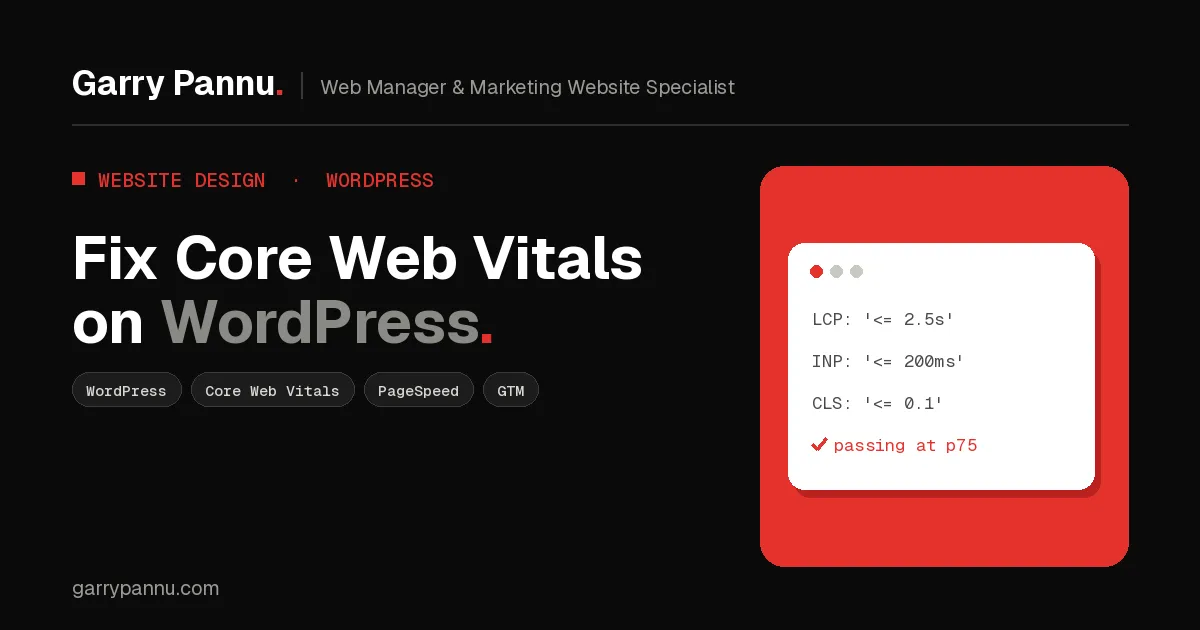
- The targets are LCP 2.5 seconds or less, INP 200 ms or less and CLS 0.1 or less, measured at the 75th percentile of real visits.
- Field data decides pass or fail. Lighthouse scores are for diagnosis, not for reporting to your boss.
- On WordPress, the hero image and render-blocking scripts are usually the biggest LCP problems.
- GTM containers full of old Custom HTML tags are a common, quiet cause of poor INP.
- Fix in order, test after each change, and let Search Console validate over 28 days.
What are Core Web Vitals and what scores do you need?
**They're three Google metrics for loading, responsiveness and visual stability.** According to web.dev, a good experience means Largest Contentful Paint (LCP) within 2.5 seconds, Interaction to Next Paint (INP) of 200 milliseconds or less, and Cumulative Layout Shift (CLS) of 0.1 or less. A page passes when it hits all three at the 75th percentile of page loads, on mobile and desktop separately.
INP replaced First Input Delay in 2024, so guides that mention FID are out of date.
How do you measure Core Web Vitals on WordPress?
Use Search Console for the site-wide picture and PageSpeed Insights for individual pages. Both use field data from the Chrome User Experience Report (CrUX), which is what real Chrome users experienced over the last 28 days.
The Core Web Vitals report in Search Console groups similar URLs and labels them Good, Need improvement or Poor, based on the worst of the three metrics. Fix Poor groups first, starting with the URLs that get the most impressions.
In PageSpeed Insights, the top section ("Discover what your real users are experiencing") is field data. The bottom section ("Diagnose performance issues") is a Lighthouse lab test on a simulated device. When they disagree, trust the field data, and use the lab section to find out why. Lighthouse can't measure INP because there's no real user clicking, so it shows Total Blocking Time as a stand-in.
Field data tells you whether you have a problem. Lab data helps you find it.
What usually slows down a WordPress marketing site?
The same six things, on almost every site.
- Heavy page builders that output deep, nested markup, large CSS and JavaScript files, and hero images set as CSS backgrounds.
- Too many plugins, each loading its own scripts and styles on every page, even where they aren't used.
- Unoptimised hero images: full-size JPEGs or PNGs straight from the designer, often lazy-loaded by a plugin.
- Render-blocking scripts and styles in the head, such as sliders, animation libraries and font loaders.
- Third-party tags and GTM bloat: chat widgets, heatmaps, ad pixels and old Custom HTML tags nobody remembers adding.
- Cheap shared hosting with a slow Time to First Byte, which makes a 2.5 second LCP very hard to reach.
How do you fix Core Web Vitals on WordPress, step by step?
Work from the server outward: caching first, then images, then scripts, then layout, then cleanup. Test in PageSpeed Insights after each step so you know what made the difference.
Step 1: Fix hosting and add page caching
If your server takes a second to send the first byte of HTML, nothing on the front end can fully make up for it. Turn on full-page caching through your host or a caching plugin, add a CDN. If cached pages are still slow to respond, upgrade your hosting.
Step 2: Resize and convert images to WebP or AVIF
Upload images at the size they're displayed, not the size they were exported. WordPress creates responsive sizes for you, so let it. Serve WebP or AVIF instead of JPEG and PNG; WordPress has supported AVIF uploads since version 6.5, as long as your server's image library supports it.
Step 3: Prioritise the LCP image and never lazy-load it
Google's LCP guide is clear: never lazy-load your LCP image, make sure it's in the initial HTML, and give it fetchpriority="high". Since version 6.3, WordPress core adds fetchpriority="high" to the image it thinks is the LCP image. The problem is that many page builders and lazy-load plugins override this, or use a CSS background the browser can't discover early. In that case, use a normal img element or preload it:
<link rel="preload" as="image" href="/wp-content/uploads/hero.webp"
      type="image/webp" fetchpriority="high">
Step 4: Defer non-critical scripts
Synchronous scripts in the head block rendering. Add defer to anything that isn't needed for the first paint, remove unused CSS where your theme or builder allows it, and stop loading plugin assets on pages that don't use them. Test forms, menus and sliders carefully afterwards, because aggressive deferring is the most common way to break a WordPress site.
Step 5: Set image dimensions and reserve space
Most CLS problems come from images, embeds and banners without reserved space. Make sure every img has width and height attributes, give video embeds and iframes a fixed aspect ratio, and don't inject cookie banners or promo bars above existing content.
Step 6: Audit plugins and your GTM container
Deactivate plugins you don't need and replace heavy ones with lighter alternatives. Then open Google Tag Manager. web.dev's tag best practices recommend removing duplicate and unused tags rather than just blocking them with trigger exceptions, and being careful with Custom HTML tags. Every chat widget and heatmap adds JavaScript to the main thread, which is usually what hurts INP on marketing sites.
Step 7: Validate the fix in Search Console
Once PageSpeed Insights looks good, open the issue in the Core Web Vitals report and click Start Tracking. Search Console monitors field data for 28 days before it marks the issue as passed, so don't panic if nothing changes for a few weeks.
Frequently asked questions
Do I need to rebuild my WordPress site to pass Core Web Vitals?
Usually not. Caching, image fixes and a script and plugin cleanup are enough for most marketing sites. A rebuild only makes sense when the theme or page builder itself is the bottleneck.
Why is my PageSpeed score high but Search Console still says Poor?
The score is a lab test on one simulated load. Search Console uses 28 days of real visits, including slower phones and networks. It also lags, so recent fixes take weeks to show.
Which Core Web Vital is hardest to fix on WordPress?
In my experience, INP, because it's usually caused by JavaScript from plugins, page builders and third-party tags that you don't fully control.
Is a caching plugin enough on its own?
No. Caching improves server response time, but it won't fix an oversized hero image, layout shifts or heavy third-party scripts.
Will fixing Core Web Vitals improve my rankings?
Google says good Core Web Vitals align with what its ranking systems reward, but they won't outrank better content. The bigger win is usually conversion: faster pages lose fewer visitors.
If your WordPress site is stuck in the Poor bucket and you're not sure where to start, I'm happy to look at it with you. Book a call and we'll work out which fixes will make the biggest difference.

Written by
Garry Pannu
I design, build and manage marketing websites for SaaS, fintech, healthcare and IT companies, keeping them error-free, search-ready and properly tracked.