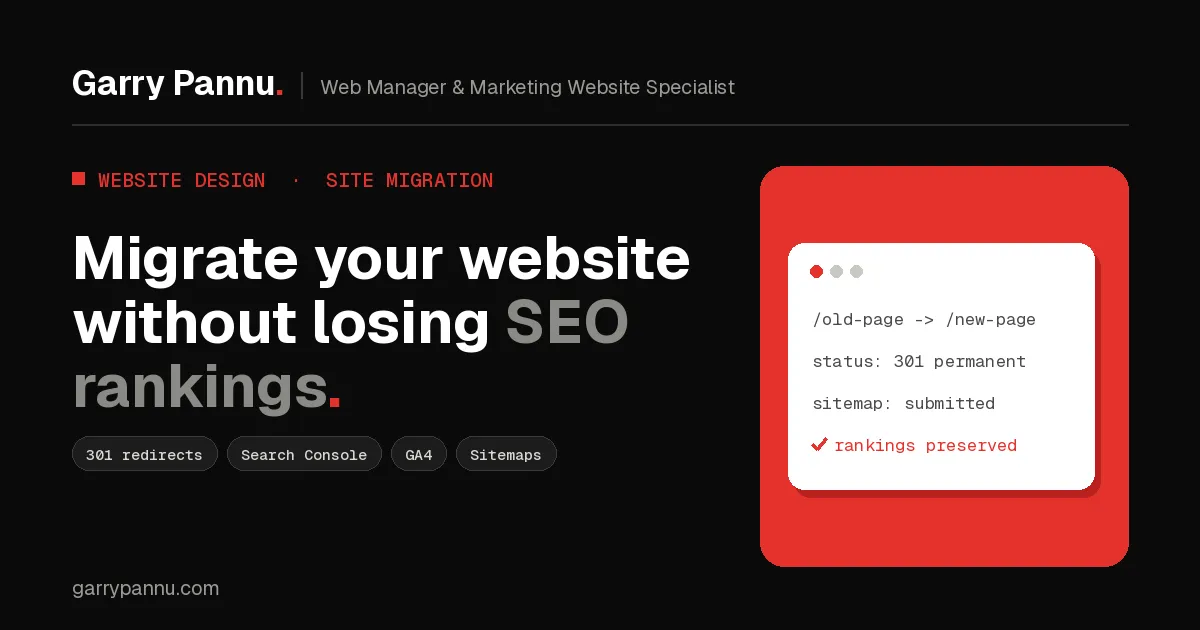
Quick answer: to migrate a website without losing SEO rankings, crawl and export every old URL first, map each one to its closest new page with a permanent 301 redirect, carry over titles, meta descriptions, canonicals and structured data, keep GA4 and GTM firing, then submit the new sitemap in Search Console and monitor for 404s for several weeks.
Most migrations I get called into are already in trouble. A team moved from WordPress to Webflow, Astro or Next.js, the new site looks great, and three weeks later organic leads have dropped by half. Nine times out of ten the cause is boring: missing redirects, blank meta titles, a leftover noindex tag, or a GA4 tag that never made it across.
A platform change doesn't have to cost you rankings. This is the checklist I use with SaaS, fintech and healthcare clients to change platforms without losing hard-won traffic.
Key takeaways
- Build a full URL inventory before anyone touches the new build.
- Every old URL that matters gets a one-hop permanent redirect to its closest equivalent, never a blanket redirect to the homepage.
- Carry over titles, meta descriptions, canonicals and schema page by page, not just the design.
- Use Search Console's Change of Address tool only when the domain changes. A platform switch on the same domain doesn't need it.
- Check GA4 and GTM on launch day, then watch Search Console for 404s and indexing drops for at least a month.
Why do websites lose rankings after a migration?
Because Google has to relearn the site, and every broken signal slows it down. Rankings are tied to specific URLs. When those URLs change without redirects, Google sees pages disappear and new, unproven ones appear. Add missing metadata, changed internal links or accidental noindex tags and the drop gets worse.
Google's own site move guidance says to expect some temporary fluctuation, and that a small to medium site can take a few weeks for most pages to move. A temporary wobble is normal. A permanent drop usually means something was missed.
How do you migrate a website without losing SEO?
Work through seven steps: inventory, redirect map, metadata, tracking, pre-launch QA, launch, then monitoring. The steps are the same whether you're moving from WordPress to Webflow, Astro or Next.js.
Step 1: Build a complete URL inventory
Crawl the live site with a tool like Screaming Frog and export every URL with its status code, title, meta description, canonical and H1. Then add URLs a crawler can miss: pages in your XML sitemap, top landing pages from GA4 and Search Console's Performance report, and pages with backlinks. Don't forget PDFs and images that get search traffic. Mark each URL as keep, merge or retire.
Step 2: Build the 301 redirect map
Map every old URL to its single best match on the new site. I keep it in a spreadsheet with three columns: old URL, new URL and status. Rules I follow on every project:
- Redirect old URLs straight to the final destination. No chains like A to B to C.
- Merged content can redirect to the new combined page.
- Retired pages with no equivalent should return a 404 or 410, not a redirect to the homepage.
- Keep the redirects in place for at least a year, ideally for good.
Google treats 301 and 308 as permanent redirects that tell it the new URL should be canonical, and its site move guide says permanent redirects don't cause a loss in PageRank. Redirecting lots of old pages to one irrelevant page, such as the homepage, can be treated as a soft 404.
Each platform handles this differently. WordPress usually uses a plugin or server rules, Webflow has built-in 301 redirect settings, and in Next.js you add them to redirects in next.config.js. Note that Next.js returns a 308 when you set permanent: true, which Google also treats as permanent:
// next.config.js
module.exports = {
  async redirects() {
    return [
      { source: '/blog/:slug', destination: '/insights/:slug', permanent: true },
      { source: '/services/seo-audit', destination: '/seo', permanent: true },
    ]
  },
}
Step 3: Carry over titles, meta descriptions, canonicals and structured data
The new pages need the same on-page signals as the old ones, unless you're deliberately improving them. Use your inventory to copy every title tag and meta description. Each new URL should have a self-referencing canonical pointing at its new address, not the old one or a staging domain. If your WordPress site had schema from a plugin (Organization, Article, FAQ, Breadcrumb), rebuild it on the new platform and test it with the Rich Results Test. Update hreflang if you run more than one language, and update internal links so they point to new URLs rather than relying on redirects.
Step 4: Carry over GA4 and Google Tag Manager
Install the same GTM container, or the same GA4 measurement ID, on the new site. Keeping the same property means your history stays in one place and you can compare before and after. Then check every event that matters: form submissions, demo requests, key events and any Google Ads conversion tags. Forms almost always change during a rebuild, so the old triggers often stop firing. Also carry over consent banners and any Search Console verification file or meta tag.
Step 5: Run pre-launch QA on staging
Crawl staging and compare it with your inventory. Check that every keep URL exists, titles and canonicals match, and nothing important is missing. Keep staging blocked from search, but write down every noindex tag and robots.txt rule you'll need to remove on launch day.
Step 6: Launch day checks
- Remove staging noindex tags and robots.txt blocks.
- Turn on redirects and test your full old URL list in bulk. Every one should return a single 301 or 308 to a 200 page.
- Submit the new XML sitemap in Search Console.
- Use URL Inspection on your top 10 to 20 pages.
- Watch GA4 Realtime and submit a test lead on every form.
If the domain is changing too, submit a Change of Address in Search Console for the old property. Google is clear that it isn't needed for HTTP to HTTPS moves, www to non-www changes, or path changes on the same domain.
Step 7: Monitor for at least four to six weeks
Check Search Console's Page indexing report weekly for spikes in Not found errors, compare clicks and impressions for your top pages against the weeks before launch, and fix any 404 that still gets traffic or backlinks. Ask partners linking to your key pages to update their links, and update your ad campaigns and social profiles to new URLs.
Frequently asked questions
Do I need the Change of Address tool when switching from WordPress to Webflow?
Not if the domain stays the same. The tool is only for moving from one domain or subdomain to another. A platform switch on the same domain just needs redirects and a new sitemap.
How long do 301 redirects need to stay in place?
Google recommends at least one year. I keep them indefinitely for important pages, because old backlinks and bookmarks keep sending visitors for years.
Will I lose rankings if my URLs don't change?
The risk is much lower, but not zero. Missing titles, changed content, broken internal links or slower pages can still hurt. Run the same metadata and tracking checks.
Should I redesign and change domains at the same time?
Avoid it if you can. Google suggests changing one thing at a time, so if rankings dip you know which change caused it.
How long does it take Google to process a site migration?
For a small to medium site, most pages usually move within a few weeks. Larger sites take longer, and some fluctuation along the way is normal.
If you're planning a move to Webflow, Astro or Next.js and want a second pair of eyes on your redirect map before launch, Book a call and we'll walk through it together.

Written by
Garry Pannu
I design, build and manage marketing websites for SaaS, fintech, healthcare and IT companies, keeping them error-free, search-ready and properly tracked.