Quick answer: create single-line text contact properties named utm_source, utm_medium, utm_campaign, utm_term and utm_content, then add them to your HubSpot form as hidden fields. HubSpot fills hidden fields from matching query string parameters on the page URL. To keep UTMs when visitors browse to another page first, store them in a first-party cookie.
Most B2B teams I work with run paid campaigns into a HubSpot form and then can't answer a simple question from sales: which campaign did this lead come from? HubSpot's own source properties help, but they bucket traffic into broad channels and only keep one campaign name in a drill-down field. When a client wants pipeline by campaign, I add UTM capture to every form.
Here's the setup I use. It takes about 30 minutes, works on any HubSpot plan, and gives you clean campaign data on every contact record.
Key takeaways
- Create one custom contact property per UTM, using the exact parameter name as the internal name.
- Add those properties to your form as hidden fields. HubSpot fills them from the page's query string.
- Query strings only work on the page the visitor lands on. Use a first-party cookie to carry UTMs to the form page.
- Keep HubSpot's Original Traffic Source properties. UTM properties sit alongside them, they don't replace them.
- Use the same lowercase naming in HubSpot and GA4 so campaign reports match.
Why capture UTMs in HubSpot forms at all?
Because HubSpot's default source properties don't store your full UTM set. HubSpot sets Original and Latest Traffic Source automatically, and the drill-down properties hold extra detail such as a campaign name. But utm_source, utm_medium, utm_term and utm_content don't each get their own field, and you can't edit the source categories. With your own UTM properties, every contact carries the exact values from your tracking links, ready for lists, workflows and reports.
How does HubSpot auto-fill hidden fields from the URL?
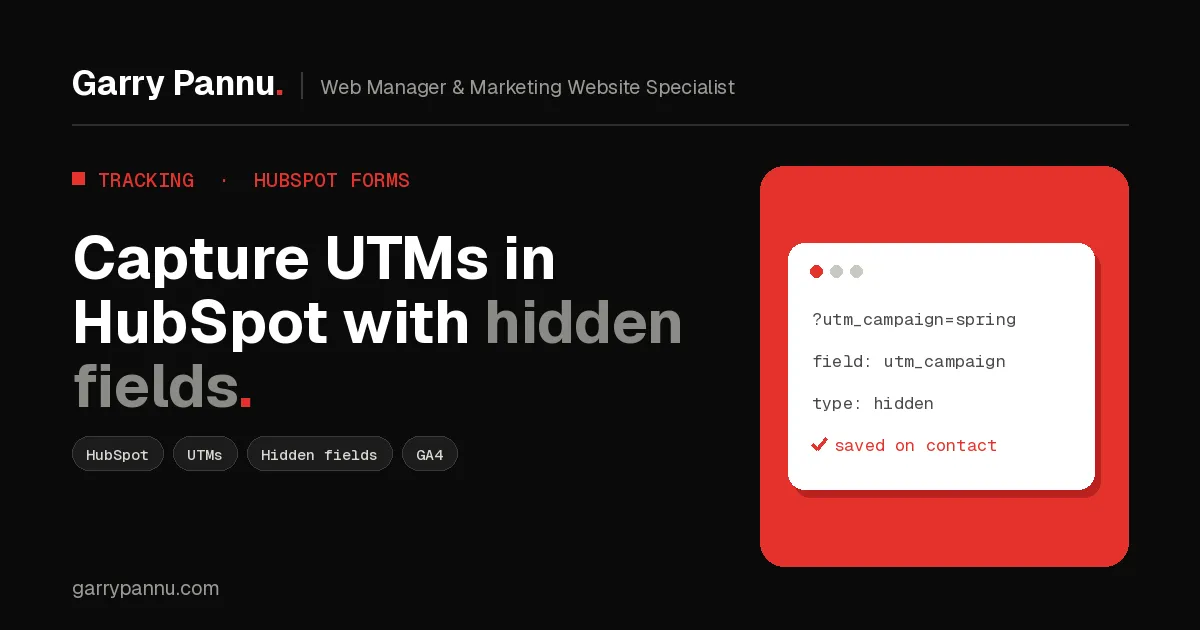
**HubSpot matches query string parameters to the internal names of the properties on your form.** According to HubSpot's guide to auto-populating form fields with a query string, form fields, including hidden fields, populate automatically from the page URL. So if your form has a hidden field for a property with the internal name utm_campaign, a visit to /demo?utm_campaign=spring-webinar fills it with spring-webinar, and the value is saved on submission.
The catch: it reads the URL of the page the form is on. If someone lands on your blog post from a LinkedIn ad, then clicks through to /demo, the UTMs are gone by the time they see the form.
How do you capture UTM parameters in HubSpot forms?
Create the properties, add them as hidden fields, persist the values across pages, then test.
Step 1: Create custom contact properties for each UTM
In HubSpot, click the settings icon, go to Properties, select Contact properties and click Create property. Create five single-line text properties labelled utm_source, utm_medium, utm_campaign, utm_term and utm_content. Open each one and confirm the internal name matches the parameter exactly, because that's what HubSpot matches against the URL. Put them in their own property group so they're easy to find later.
Step 2: Add the properties to your form as hidden fields
Go to Marketing > Forms, open your form, and add the five properties. Hover over each field, click the edit icon and turn on the Hidden field switch. Leave the default value empty. A field can't be hidden if Required is turned on, so switch that off first.
One thing to watch: if Pre-populate fields for returning visitors is on, HubSpot notes that a hidden field's value may be overwritten depending on its field type. Single-line text fields are the safest choice here.
Step 3: Persist UTMs with a first-party cookie
Add this script to every page, above your HubSpot form embed code. It saves UTMs in a first-party cookie whenever they appear in the URL, then writes them into the hidden fields using HubSpot's global form events for forms built in the updated forms editor.
<script>
(function () {
  var KEYS = ['utm_source', 'utm_medium', 'utm_campaign', 'utm_term', 'utm_content'];
  var params = new URLSearchParams(window.location.search);

  // 1. Save UTMs from the landing URL for 90 days
  var found = {};
  KEYS.forEach(function (k) { if (params.get(k)) found[k] = params.get(k); });
  if (Object.keys(found).length) {
    document.cookie = 'utm_store=' + encodeURIComponent(JSON.stringify(found)) +
      '; max-age=' + 90 * 86400 + '; path=/; SameSite=Lax';
  }

  // 2. Read the saved values
  function saved() {
    var m = document.cookie.match(/(?:^|; )utm_store=([^;]*)/);
    try { return m ? JSON.parse(decodeURIComponent(m[1])) : {}; } catch (e) { return {}; }
  }

  // 3. Fill the hidden fields when a HubSpot form is ready
  window.addEventListener('hs-form-event:on-ready', function (event) {
    var form = HubSpotFormsV4.getFormFromEvent(event);
    var utms = saved();
    Object.keys(utms).forEach(function (k) {
      form.setFieldValue('0-1/' + k, utms[k]); // 0-1 = contact properties
    });
  });
})();
</script>
A few notes. HubSpot says on-ready listeners must be defined before the embed code runs, which is why placement matters. This version overwrites the cookie each time a visitor arrives with new UTMs, so it records the latest campaign. If you want first touch instead, only write the cookie when it doesn't exist yet. Legacy forms don't fire these events, so they need the older onFormReady callback instead. And if your cookie banner blocks marketing cookies until consent, load this script under the same consent rules.
Step 4: Test with a tagged URL
Open a private window and visit a blog post with ?utm_source=test&utm_medium=cpc&utm_campaign=utm-check on the end. Click through to the form page, submit with a test email, then open the contact record. All three UTM properties should show your test values. Delete the test contact afterwards.
What's the difference between UTMs and HubSpot's Original Traffic Source?
**Original Traffic Source is HubSpot's own channel category; your UTM properties are the raw values from your links.** HubSpot's traffic source properties sort contacts into categories such as Paid search, Paid social, Organic social and Other campaigns, with two drill-down properties for detail. For paid search, drill-down 1 is the campaign name from utm_campaign. The drill-downs are set automatically and can't be edited by hand.
I keep both. Original Traffic Source answers "which channel brought this person in first?" with no setup. The UTM properties answer "which exact campaign, ad and keyword was it?" and they're yours to report, filter and clean up.
How do you report on leads by campaign?
Build a contact report grouped by your utm_campaign property, then add deal data. Because the UTMs are ordinary contact properties, you can use them in custom reports, segments and workflows like any other field. Start with contacts created by utm_campaign, then break down by lifecycle stage so you see which campaigns produce opportunities, not just form fills.
Consistency makes or breaks this. Google's UTM best practices point out that GA4 treats values as case sensitive, so Spring_Sale and spring-sale become separate rows. HubSpot reports will split them the same way. Agree a lowercase naming convention and use one link builder for the whole team, and your HubSpot and GA4 campaign reports will line up.
Frequently asked questions
Do I need a paid HubSpot plan to capture UTMs?
No. Custom properties, hidden fields and query string auto-fill are available on all HubSpot plans, including free. Only the number of custom properties you can create depends on your subscription.
Why are my UTM fields empty on new contacts?
Usually the visitor landed on a different page from the form, so the UTMs weren't in the form page's URL. Add the cookie script. Also check that each property's internal name exactly matches the parameter name.
Should I track first touch or last touch UTMs?
For most B2B teams I set up both: one set of properties that's only written once, and one that updates on every campaign visit. If you only pick one, last touch is easier to act on for paid media.
Will this work with GA4 too?
Yes. GA4 reads UTMs from the landing page URL on its own, so nothing changes there. Using the same values in both tools is what lets you compare GA4 sessions with HubSpot leads by campaign.
Can I map UTMs to deals as well as contacts?
Yes, if your plan includes workflows. Use one that copies the contact's UTM values onto a matching deal property when a deal is created. That's how you get revenue by campaign instead of lead counts.
If your campaigns are bringing in leads but nobody can say which ones, I'm happy to help set this up properly. Book a call and we'll get your UTMs flowing into HubSpot.

Written by
Garry Pannu
I design, build and manage marketing websites for SaaS, fintech, healthcare and IT companies, keeping them error-free, search-ready and properly tracked.